

Download SageThumbs – Free Image Conversion Tool for Windows & Mac
SageThumbs is a lightweight, secure, and fast image conversion utility that enhances your Windows Explorer experience with advanced thumbnail previews and instant file format conversion. Designed by CherubicSoft, this shell extension leverages the powerful GFL Library by Pierre-e Gougelet, enabling support for over 160 image formats and 224 file extensions. Whether you're a photographer managing large image libraries or a casual user organizing digital photos, SageThumbs brings essential image tools directly into your file manager—no need to open heavy image editing software. With features like batch conversion, wallpaper setting, clipboard copy, and detailed metadata preview, SageThumbs streamlines your workflow. It’s a free, easy-to-install tool that integrates seamlessly with Windows and Mac, offering a smooth, efficient experience for users of all skill levels.
Key Features of SageThumbs
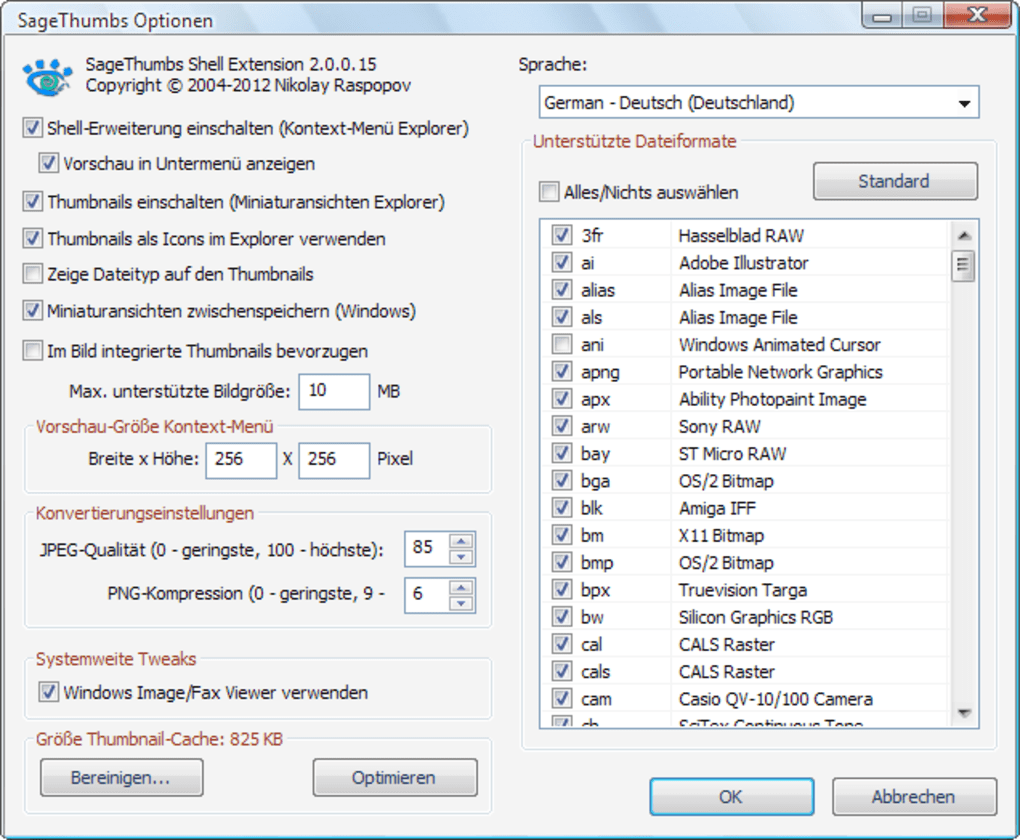
One of the standout aspects of SageThumbs is its powerful yet minimal footprint. Unlike bulky image editors, this tool operates as a shell extension, meaning it runs in the background and integrates directly into Windows Explorer. This design ensures it consumes minimal system resources while delivering robust functionality. The core feature is its ability to display high-quality thumbnails for over 162 image formats, thanks to the GFL Library—a technology also used in XnView, a well-known image viewer. This means you can preview images like PSD, RAW, TIFF, and even obscure formats without needing to open a separate application.
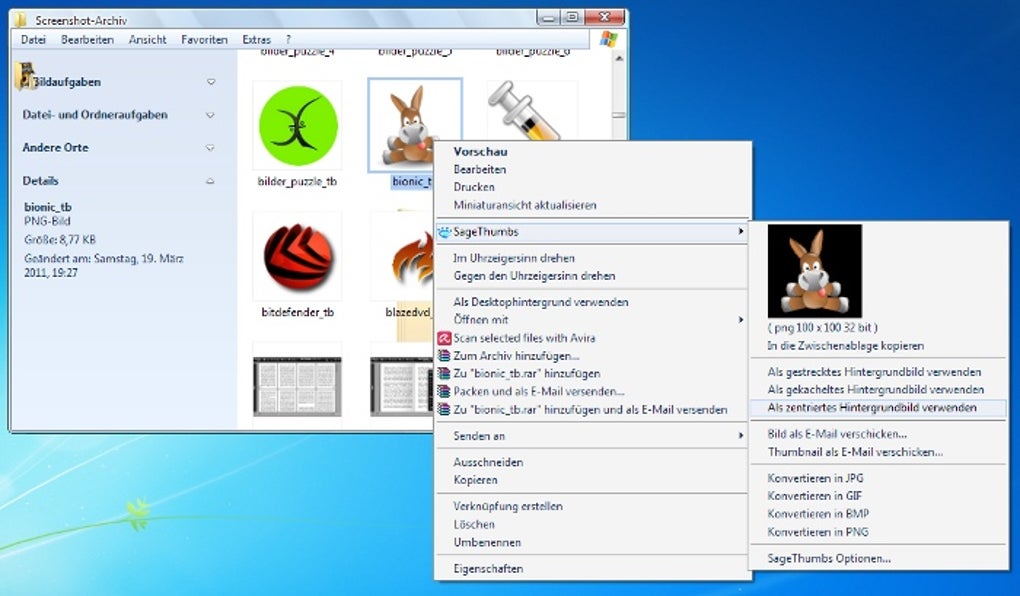
SageThumbs also enables quick image conversion directly from the right-click context menu. Users can convert files to popular formats such as JPEG, PNG, BMP, and WebP with just a few clicks. The batch conversion feature is particularly useful for professionals handling large volumes of images. You can select multiple files, choose your desired output format, adjust quality settings, and process them all at once—saving hours of manual work. Additionally, the tool allows you to set any image as your desktop wallpaper directly from the context menu, a small but highly convenient feature.
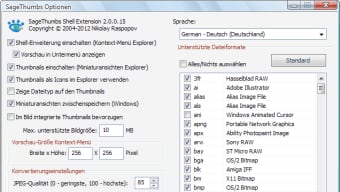
For advanced users, SageThumbs offers customization options, including adjusting thumbnail size, setting default output formats, and managing supported file extensions. You can even extend functionality by installing additional XnView plugins, which add support for 26 more formats. The integrated metadata preview shows EXIF, IPTC, and other image details, helping users verify image properties without opening external tools. With its intuitive interface and powerful backend, SageThumbs strikes the perfect balance between simplicity and capability.
How to Install and Use SageThumbs on Windows and Mac
Installing SageThumbs is straightforward and takes less than a minute. First, visit the official website and download the latest version of the software. The installer is lightweight, typically under 5MB, and comes in both Windows (x64 and x86) and Mac (Intel/Apple Silicon) versions. Once downloaded, run the installer and follow the on-screen prompts. The process is silent and requires no configuration—just click “Next” and “Install.” After installation, the tool automatically integrates into Windows Explorer and Mac’s Finder, adding new options to the right-click context menu.
To use SageThumbs, simply navigate to your image folder in File Explorer (Windows) or Finder (Mac). Right-click on any image file, and you’ll see a new menu with options like “Preview,” “Convert to,” “Set as Wallpaper,” and “Copy to Clipboard.” Selecting “Convert to” opens a submenu where you can choose your desired output format. You can also enable batch conversion by selecting multiple images before right-clicking. The software supports real-time preview of the converted image, so you can verify the result before finalizing.
For users who want to customize the experience, SageThumbs includes a settings panel accessible through the context menu. Here, you can adjust thumbnail size, set default conversion quality, and manage which formats are displayed. The tool also supports hotkey shortcuts for faster access. Importantly, SageThumbs does not require admin rights to install, making it ideal for corporate or shared computers. Regular updates are released to fix bugs and improve compatibility, ensuring your experience remains smooth and secure.
Compatibility & System Requirements
SageThumbs is designed to be highly compatible across modern operating systems. It supports Windows 7 and later, including Windows 10 and Windows 11 (both 32-bit and 64-bit versions). On Mac, it runs on macOS 10.14 (Mojave) and later, including Apple Silicon (M1/M2) Macs, ensuring broad accessibility for both legacy and modern hardware. The software is lightweight, requiring only a few megabytes of RAM and minimal CPU usage, making it suitable for older systems as well.
Despite its small size, SageThumbs leverages the full power of the GFL Library, which is optimized for performance and stability. This means even large image files are previewed quickly, and conversions happen in real time. The tool does not require any additional software like .NET Framework or Java, making it truly portable. It also works seamlessly with network drives, external hard drives, and cloud storage folders, so you can manage images stored in Dropbox, OneDrive, or Google Drive without issues.
For users concerned about security, SageThumbs is a trusted, open-source-inspired tool with no bundled ads or malware. The developers emphasize privacy and transparency, and all updates are signed and verified. This makes it safe to download and use on both personal and professional machines. Whether you're using a high-end workstation or a budget laptop, SageThumbs delivers consistent performance across all supported platforms.
Pros and Cons of SageThumbs
- Pros:
- Lightweight and fast, minimal impact on system resources
- Supports 162+ image formats via GFL Library
- Batch conversion and real-time preview in Explorer
- Easy right-click integration with no learning curve
- Free to download and use with no ads or bloatware
- Customizable settings and hotkey support
- Works on Windows and Mac with full compatibility
- Cons:
- No built-in image editing tools (only conversion and preview)
- Limited to Windows Explorer and Mac Finder integration
- Some advanced features require XnView plugin installation
- Occasional compatibility issues with older Windows versions
- Documentation is minimal, relying on user intuition
Frequently Asked Questions (FAQ)
Is SageThumbs free to download and use?
Yes, SageThumbs is completely free to download and use. There are no trial periods, subscription fees, or hidden costs. The developers offer it as a no-frills utility for users who value simplicity and performance.
Can I convert multiple images at once?
Absolutely. SageThumbs supports batch conversion. Simply select multiple image files in Windows Explorer or Mac Finder, right-click, choose “Convert to,” and select your desired output format. All selected images will be processed simultaneously.
Does SageThumbs work on Mac?
Yes, SageThumbs is available for both Windows and Mac. It runs on macOS 10.14 and later, including Apple Silicon Macs. The Mac version integrates with Finder and supports all core features.
Can I install SageThumbs without admin rights?
Yes, SageThumbs does not require admin privileges to install or run. This makes it ideal for shared or restricted environments like office computers or school labs.
How do I update SageThumbs?
Updates are released periodically. You can check for new versions on the official website. The installer automatically handles updates, and you’ll be prompted to install the latest version when available.
Final Verdict: Why You Should Download SageThumbs Today
SageThumbs is a must-have tool for anyone who frequently works with images on Windows or Mac. Its ability to convert, preview, and manage files directly in the file manager saves countless hours compared to launching external software. With support for over 160 formats, batch processing, and seamless integration, it’s a powerful yet simple utility that doesn’t compromise on speed or security.
Whether you're a designer, photographer, or casual user, SageThumbs streamlines your workflow without cluttering your system. It’s fast, reliable, and completely free—making it one of the best lightweight image tools available. If you're tired of switching between apps just to convert a few images, it’s time to try SageThumbs.
Download SageThumbs now and experience faster, smarter image management—directly in your file explorer.







